In November, I Black-Friday gifted myself a Cycliq Fly6 Gen 3 tail light. The selection came after a recommendation from another Brad – thanks, Brad! This is my brief review.
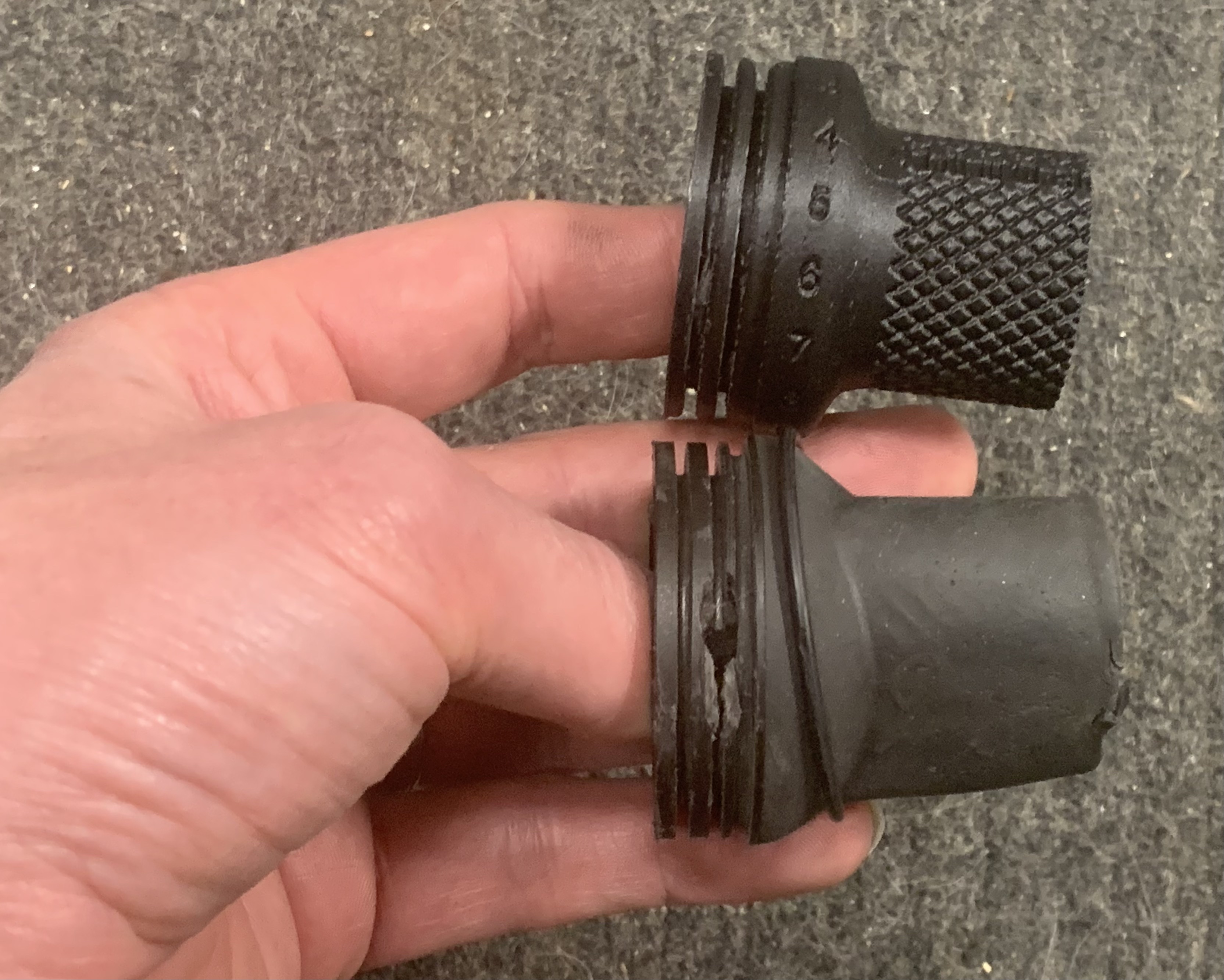
The light arrived about a week after the order was placed. At purchase time, I also requested a rubberized outer body, additional bike mounts, and glass lenses. Speaking of the lenses, this morning while riding Pugsley and gleefully hopping off a path on to the U of M Transitway I heard the big lens pop out. At the time, I had no idea what the noise was, it sounded like a screw hitting the ground. I rode back to look for whatever had fallen, but I didn’t know I was looking for a glass lens, found nothing, and rode off to work. After arriving at work, I noticed the missing lens and recalled exactly where it fell out. I will go back in darkness tonight to try and find it, but my expectations are low that it will still be intact with the bus traffic this area sees.
Ok, back on topic… I am at a loss to think of a single bike product that performs perfect in all situations, seems we usually accept compromises of some sort and this is not to say this product is perfect or completely inferior. Here are some brief ramblings from the first 60+ days of usage.
Since installing and using this light, no motorists have cut it close while passing me during daily commutes, or at least not close enough where I wanted to review the saved footage. This could be because the light is impressively bright in day and night, so motorists may be keeping further away from me than they have in the past? The light stays illuminated for my entire 60-75 minute commute and I usually charge it at either end with a fast charger should my adventures go longer later.
During winter riding and really anytime the temperature drops to 32 F or below, the light must be turned on indoors (I believe Cycliq mentions this in their literature) or while the light is at this temperature. If you use the light outside for an hour at 31 degrees, briefly stop in a store while turning the light off and bringing it with, I find that it won’t turn on and stay on if it wasn’t given sufficient time to warm up. Due to this narrow band of temperature operation, I’ve found myself running errands on the way home from work and having to lightless the rest of the way, big bummer. In the future to stave off these operational disappointments, I may leave the light on in my pocket or resort to using Cycliq’s app to temporarily turn the lights off while leaving the rest of the unit on – I’m not a huge fan of the latter approach since my hands frequently go numb and messing with the light’s phone app is one more thing that adds complexity and takes time.
I haven’t spent a lot of time playing with the light’s video, but there is one gripe I want to air out. If you read the light’s manual, it says that you need to frequently re-format the memory card, presumably to write over stuck memory. I’m going to reach out to Cycliq’s tech support team and ask them what memory type they are using in the cards issued with the light. If they even know, I assume they will respond that the the microSD is TLC or QLC NAND memory and not the more reliable SLC NAND memory. If they respond that it uses TLC or QLC it will explain why they recommend having to frequently re-format the memory and this could have been avoided. I hope to report back on this in the future.
The rubber case is a must if you ride in conditions that are similar to Minnesota winters. The case isn’t perfect, but it admirably keeps 98% of the water and road grime off the light. It can be a bit fiddly to take off, but if you hold the light, from its small tag/cord, and upside down it is pretty easy to slide the cover on and off. If people want video of this technique, let me know in the comments and I’ll post it.
I wished I had purchased another one of the velcro mounts for easily moving the light between my Dummy and Pugsley, but I can still do this.
The lens are pretty easy to install and remove, see mishap above where this causes problems. Seems this could have been improved, but as-is it offers the option to easily wash lens, which you’ll need to do if you ride in messy conditions, which I do.
** 2-14-2024 Update **
My Fly6 GEN 3’s operation time has declined, now only operating for less than a minute before shutting off and despite the battery being charged to 89% or higher. Today I filed a support ticket with Cycliq, will update later how this turns out.
** 2-28-2024 Update **
Ashe at Cycliq helped me troubleshoot my light and the ultimate conclusion was that the on-board TLC memory gets corrupted and requires the user (me) to periodically reformat the device so that it can property charge up. Doing a reformat once again allowed me to charge the device to 100%, but this is giving me some bad vibes.
As an engineer, I’ve specified and constructed monitoring systems with onboard microSD memory; however, as I mentioned above, I now only do so with commercial-grade SLC or MLC NAND memory. TLC and QLC do not last long enough and this Cycliq device has TLC inside of it. I bet I cold make these problems go away by replacing the onboard TLC memory with SLC, but it won’t be cheap. Also, I worry that SLC may not be able to keep up with the higher write rate that accompanies 4k video.
** 7-15-2024 Update **
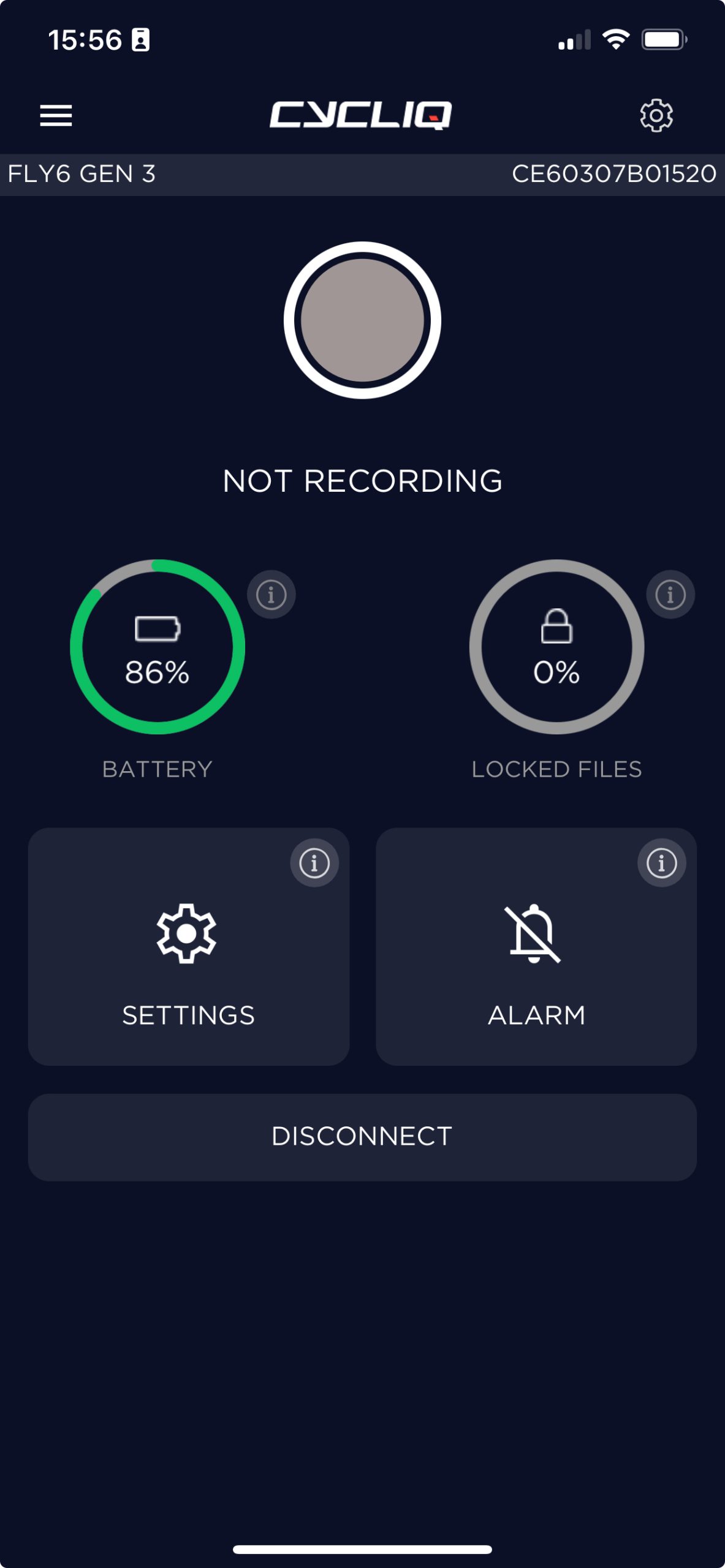
So, the light ran fine for another 4 months, but I noticed it’s taking longer and longer to charge it even though it remains mostly charged. It’s July in the northern hemisphere where I live, so most days the ample sunlight means I can ride without the light. Today I tried reformatting the TLC memory card using Ashe’s instructions and despite being on a USB-C fast charger all day now the light’s battery charge is stuck at 86%. More later…
** 10-3-2024 Update **
Cycliq’s support team said that I should expect to reformat the light’s memory every 3 months, but I’m finding it needs this reset closer to monthly or whenever the TLC-memory corrupts itself. Since it appears Cycliq has no planned firmware update to address this issue, I’m posting their reformat/reset instructions, here:
- Fully charge the device so charging LED goes green
- Format your SD card to FAT32 either via the mobile app or using an SD card reader on a computer
- Settings:
Set device time – Sync to your computer (if connecting via mobile app this will be done automatically)
Light mode – Enable Organic Mode only
Sound volume – 3
Beep interval – Off
Incident Mode – Off
Idle Mode – Off
Video resolution – 1080p 30fps
Video Segment length – 10 minutes
Video logo and timestamp display – On
- Disconnect the device then power it on and leave it on a flat surface noting the time you turned on the device
- Once the device has powered down, connect your device to the computer and access the recorded files and get the time of the last recorded file. Please send us a screenshot of your file list