My macbookpro11,4 has been rocking a 3rd party SSD since I picked it up and the last couple weeks I’ve started biking to work. The weather is still cold here and suddenly my Mac was exhibiting kernel panics, argh:
panic(cpu 0 caller 0xffffff801a5597c6): nvme: "3rd party NVMe controller. PCI link down. Write. fBuiltIn=1 MODEL=ADATA SX8200PNP FW=32B3T8EA CSTS=0xffffffff US[1]=0x0 US[0]=0x2 VID=0xffff DID=0xffff CRITICAL_WARNING=0x0.\n" @IONVMeController.cpp:6053

Panicked task 0xffffff90357de670: 178 threads: pid 0: kernel_task
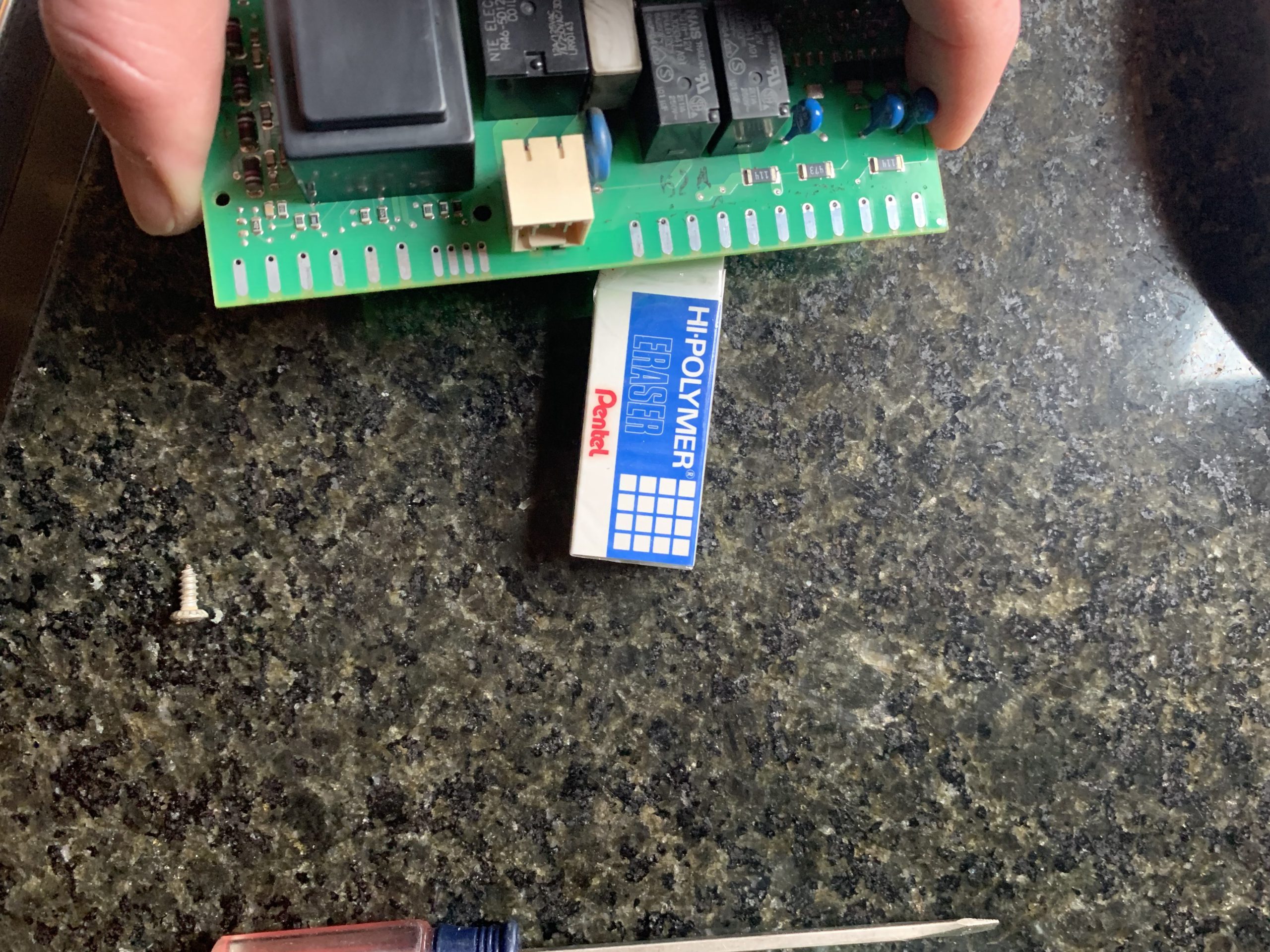
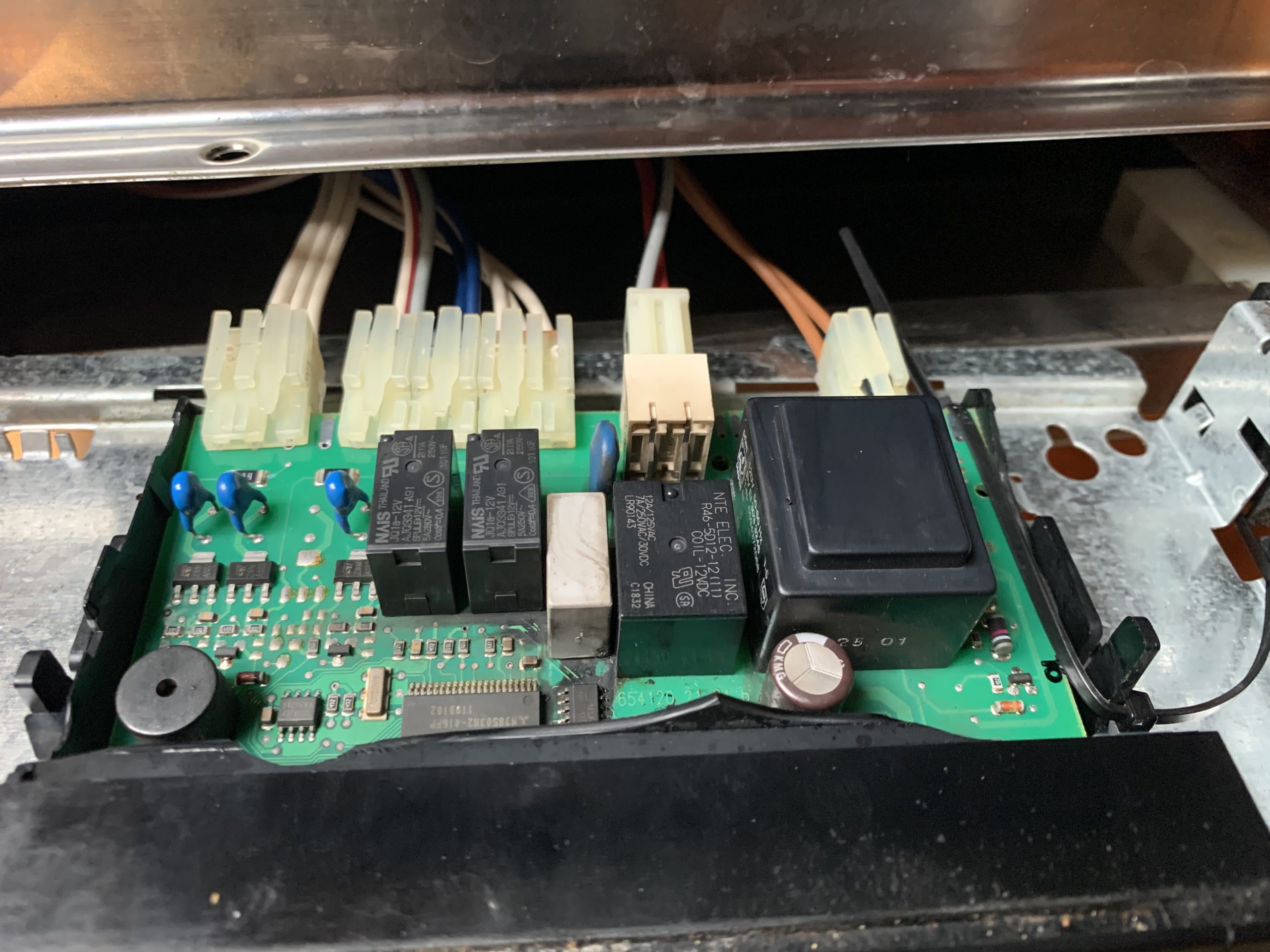
Growing slightly panicked myself, I figured that maybe the temperature changes had exacerbated the cheesy contacts on the 3rd party NVMe adapter I use. To fix, open your Mac, remove the NVMe adapter, gently rub the contacts on both sides of the adapter with a high polymer eraser (one of those white ones, I used a Pentel UPC 072512027660), and then re-insert the adapter with your NVMe SSD in your Mac. After rubbing/erasing the contacts the kernel panics disappeared.
** Update 5-28-2022 **
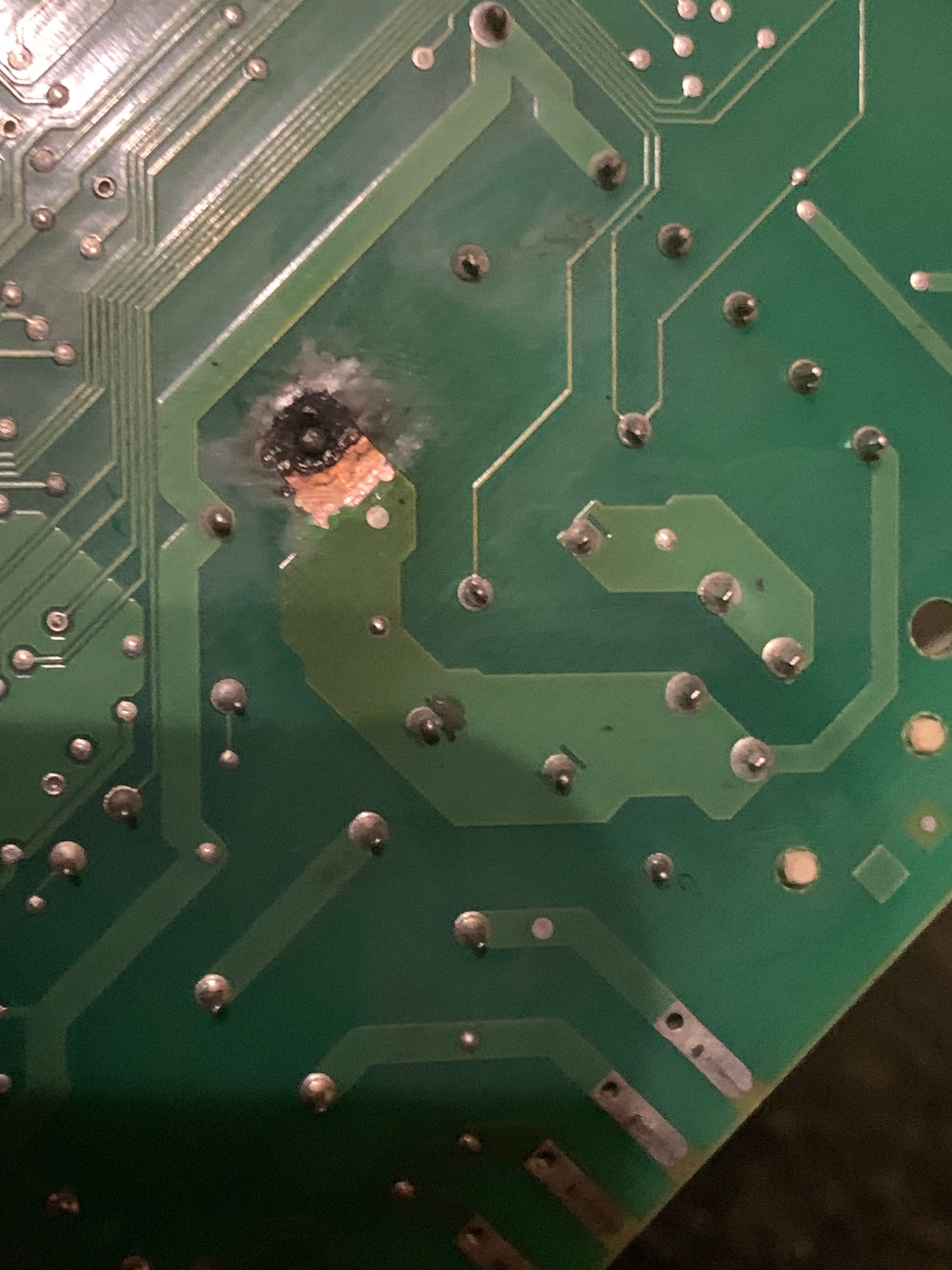
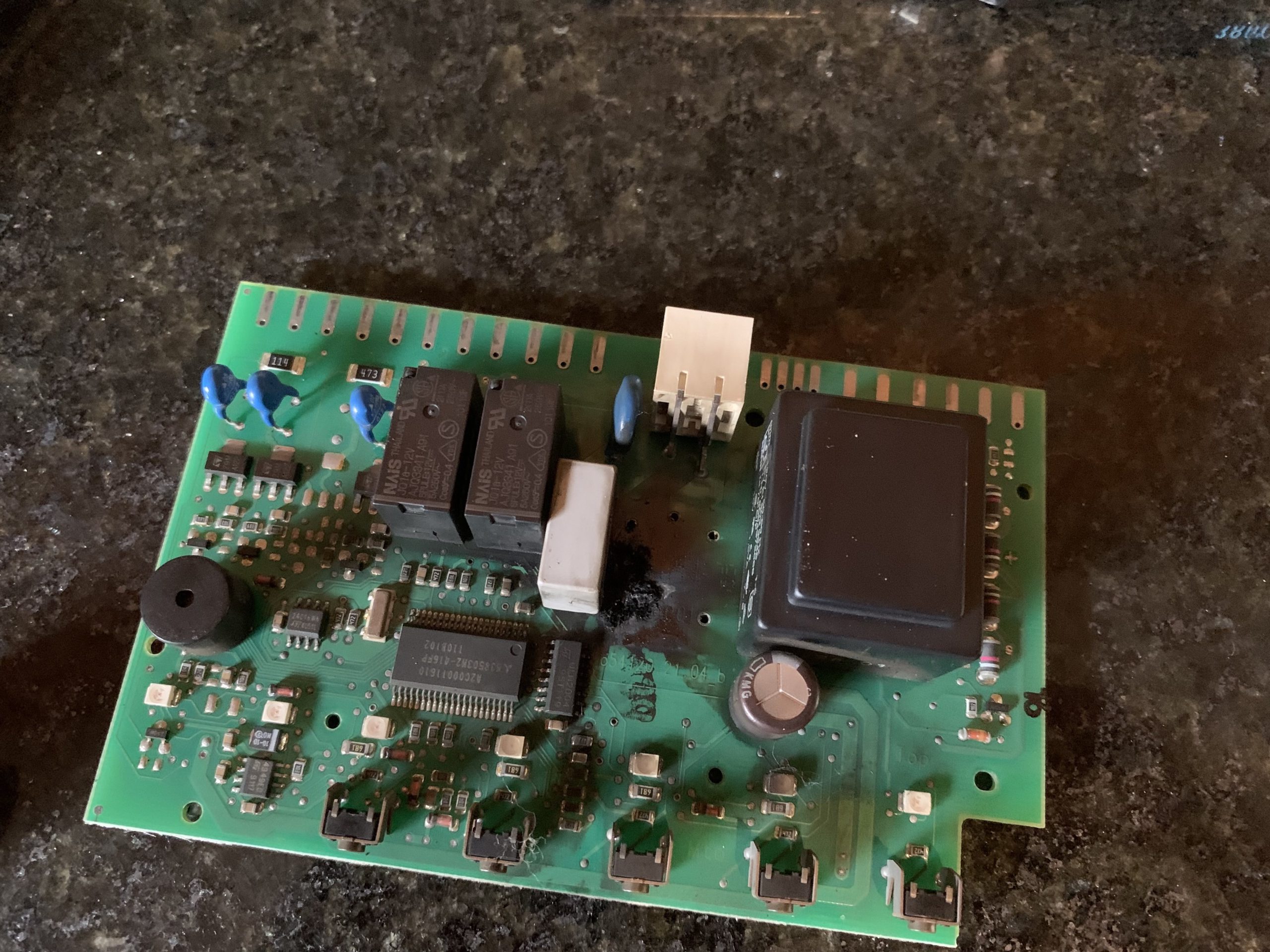
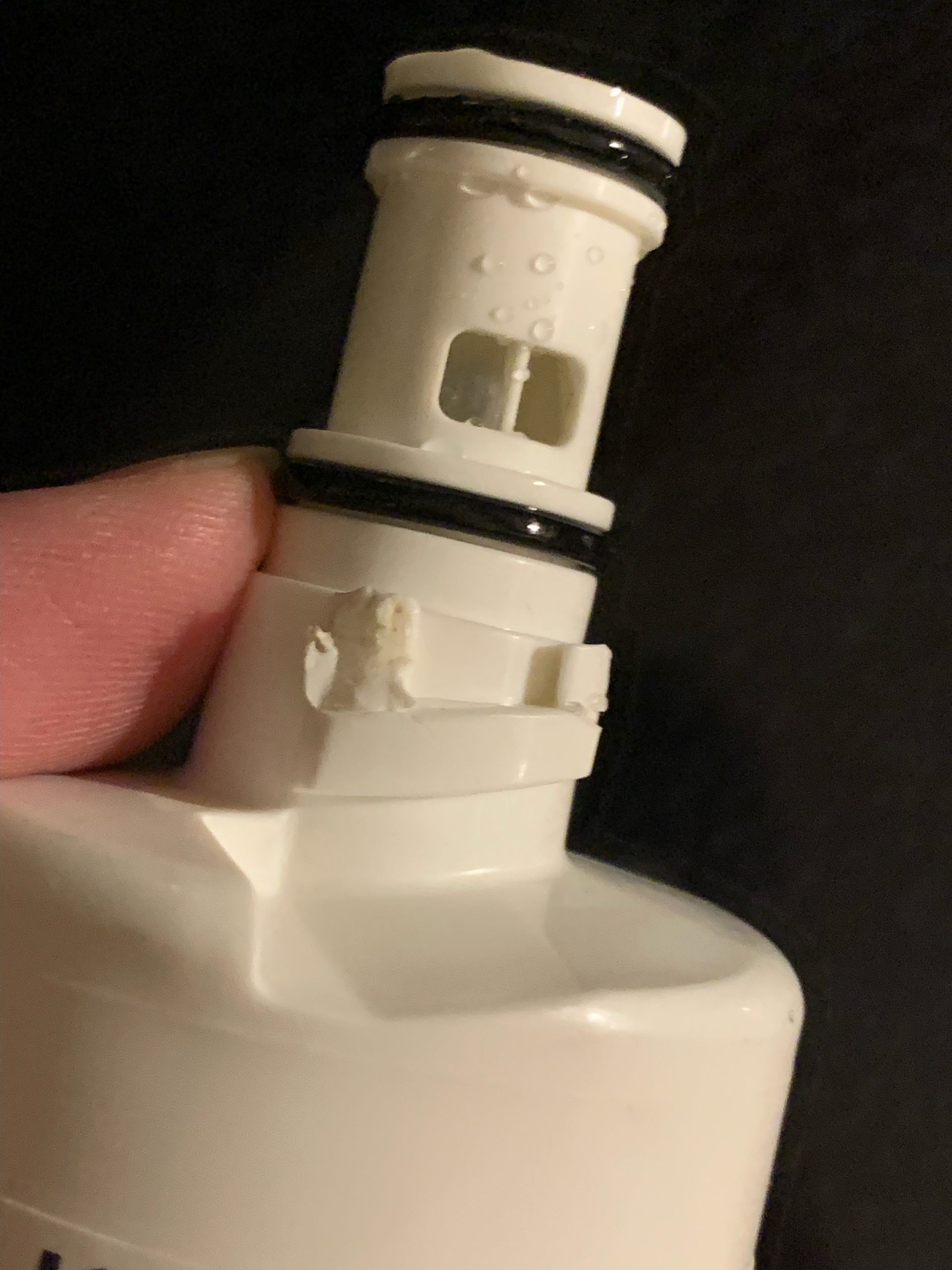
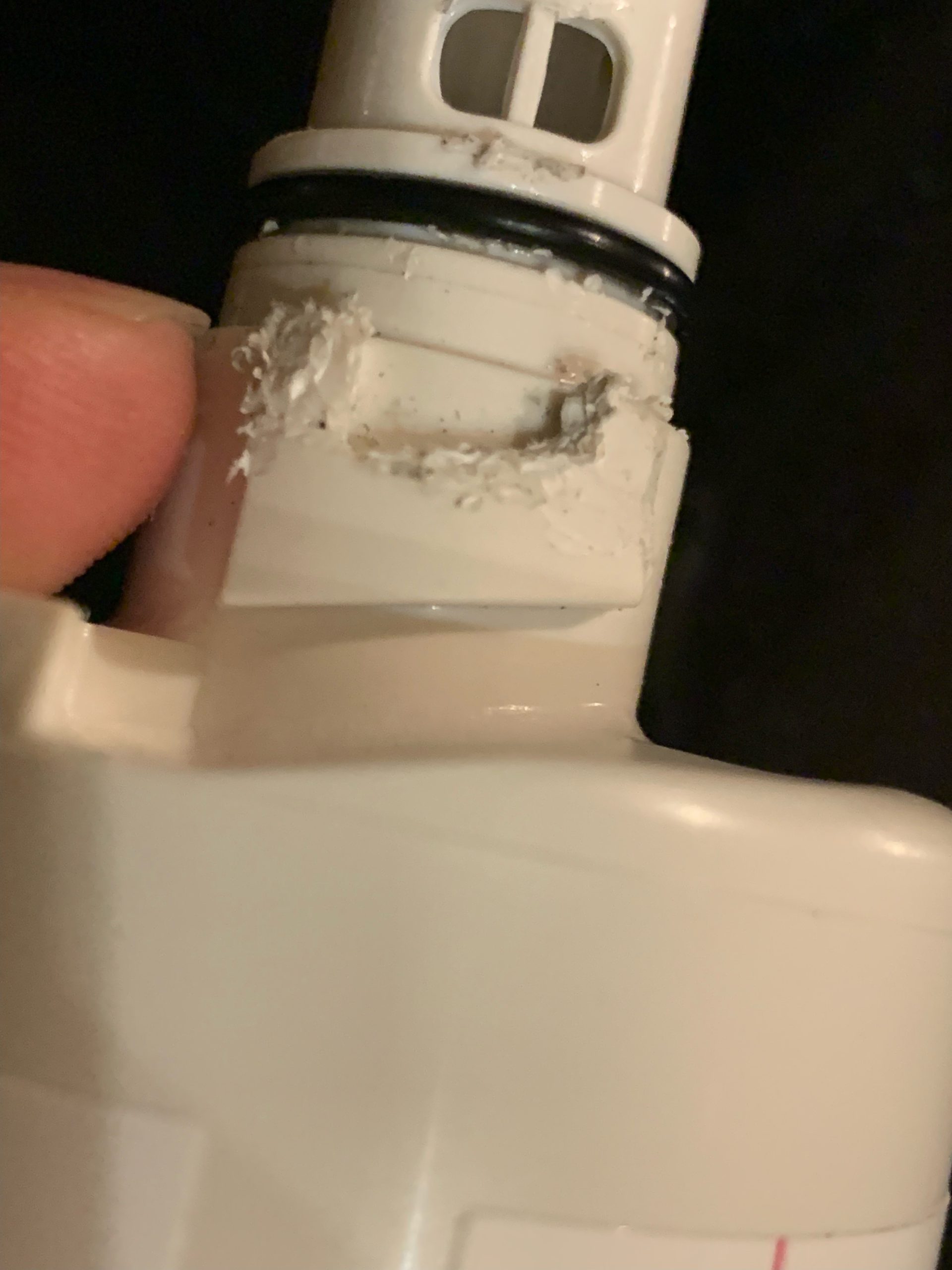
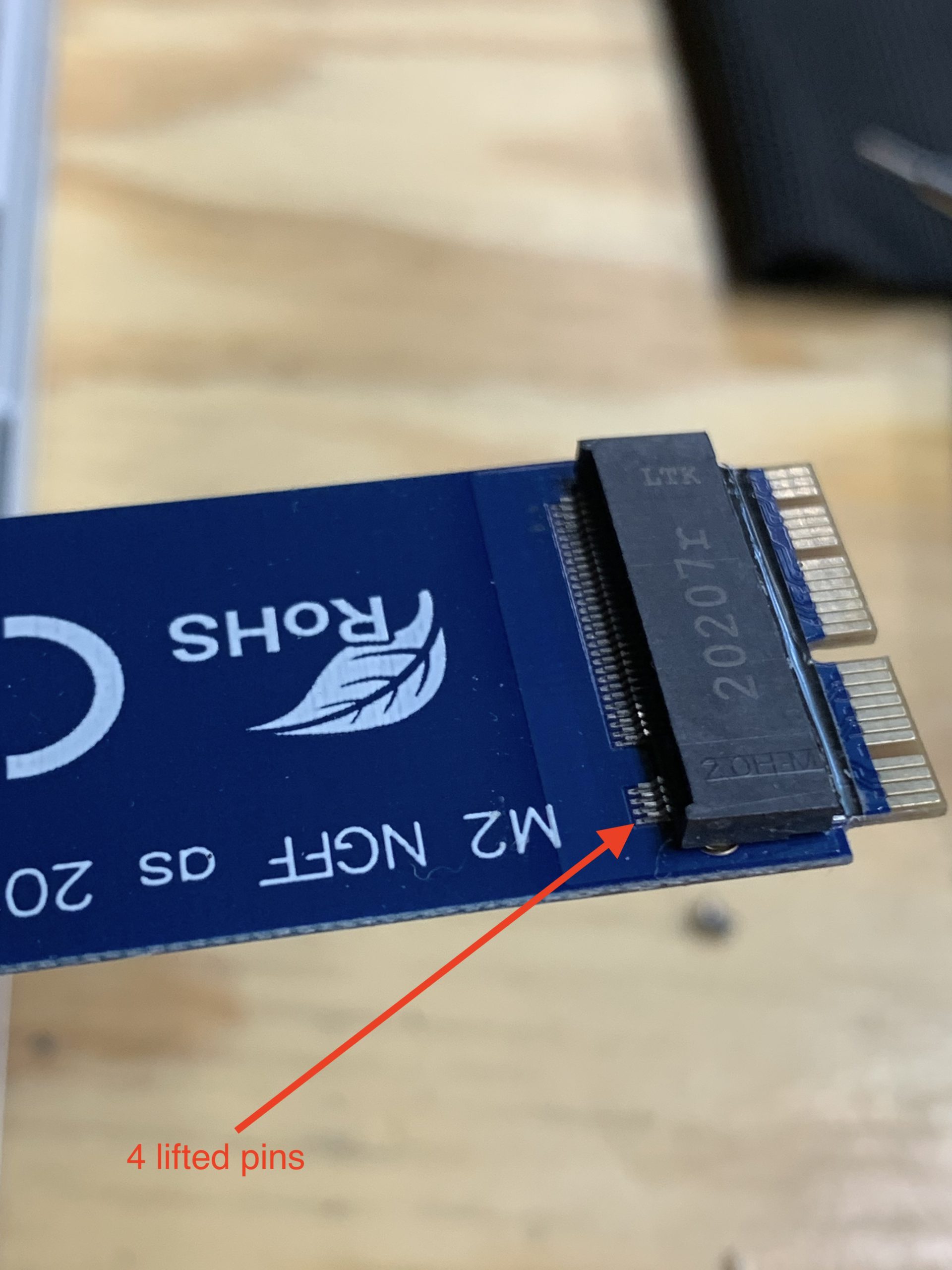
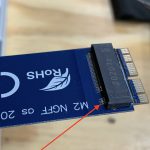
The panics returned, so I opened the macbookpro11,4 up and pulled the NVMe adapter out. This time I used a 10x loupe on it and discovered several of the pins are not attached to the board, this is bad quality control. Even better, I pulled out another adapter that failed a couple years ago and found a similar issue where only one pin had broken away from the board. Seeing that the old board was an easier repair, I pulled out my trusty soldering gun and reconnected the lone broken line. I put the ADATA NVMe back in my macbookpro11,4 with the older NVMe adapter and every is great, I’m writing this post right now with the old NVMe adapter.
Time to head to Amazon to process a warranty claim on the newer NVMe adapter and it’s failed connection points:
** Update 9-27-2022 **
The panics stayed away today when they returned. I pulled the NVMe adapter out and I didn’t bother to look at the solder points this time, but the temperature has started to drop around here and I’ve been going to work 3 times a week. I decided to clean the pads on the NVMe adapter with a fiberglass pen, which worked well on Tina’s laptop yesterday. Will report back, but the machine is already booted back up to write this and the entire thing feels faster and so far: no panics.
** Update 11-29-2022 **
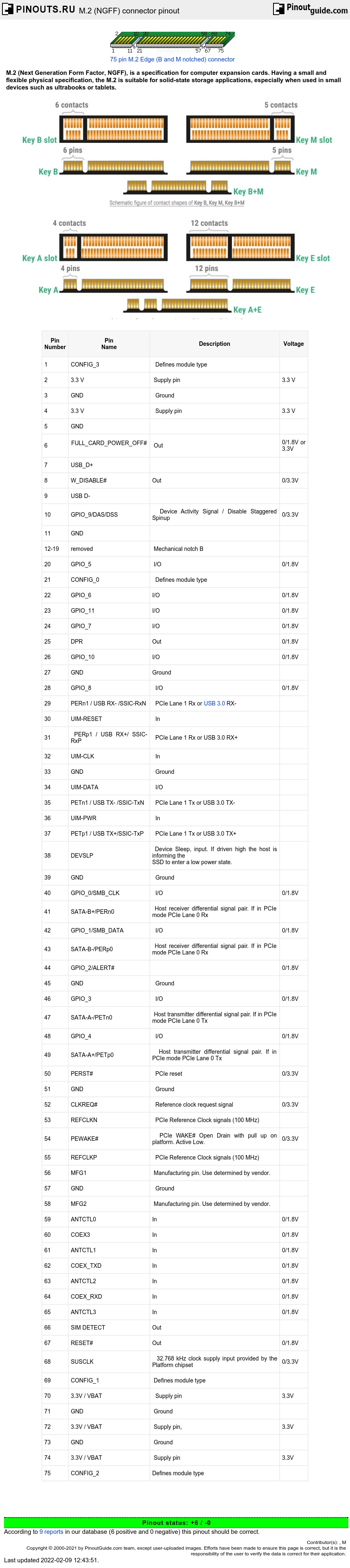
So, the drive died again. And now I see what’s going on. The SSD is attached to a cheap Sintech adapter that has pins that keep popping off the adapter’s PCB. When the pins intermittently make a connection, it erratically disconnects power from the poor SSD and has now made it inaccessible, AGAIN! Worse, my Time Machine backups stopped while I was out of town, so my nearest backup is from 11-23-2022, which should be pretty good. Before I try recovering from a backup, I need to resolder the darn Sintech pins (should I trust the adapter any more?!) and then try to read the data after I execute a power-cycle method on the SSD. Last time I tried the power-cycle method I lost my data, but the drive was fixed and readable again so I never sent it back to ADATA for an RMA replacement. I’m in the middle of the power-cycle right now. I’ll post pictures later, but based on this pin-out guide and description I taped over all of the SSD’s pins except for pins 1-4, then I put the adapter gently into a USB enclosure and connected it to my MacBook Pro with a USB cable to power it up. Interestingly, during the first 7 minutes the light on the external USB enclosure illuminated and did not flash. After 7 minutes, the light started to flash. Presumably the flashing means the power-cycle method has been initiated and it is now erasing the SSD’s cache as the best response in this thread indicates. I still have it unplug it for 30 seconds and then power it another 30 minutes. More soon…
** Update 12-19-2022 **
A couple weeks ago I sent my ADATA NVMe back for a warranty swap and needed a place to store my data, so I picked up a Samsung 970 EVO Plus. Kernel panics and sudden restarts continued with the 970, what gives?! I’m reading here that TRIM issues can lengthen restarts, but what about panics? Also, tonymacx86 recommends these NVMe drives on Hackintoshes, maybe I should check out a Western Digital NVMe? Finally, I’m actually excited to Ventura, because if I can revive my macbookpro11,4 it means I’ll have to use OpenCore Legacy Patcher and will have access to the SetApfsTrimTimeout patch described here. Also, the 970 makes this Hall of Fame list with the caveat that TRIM is disabled.
** Update 12-20-2022 **
Still working on this and now I think I’ve figured it out. The macbookpro11,4 runs flawlessly when it is in its dock at home and attached to a pair of Thunderbolt displays, but the minute I yank it out, put it to sleep, and try to go mobile the macbookpro11,4 starts to randomly restart. Being plugged into Thunderbolt Display ports helps to mask this issue and it is indeed a board level repair to correct the issue as described here https://www.youtube.com/watch?v=_QC_KcnPQmE. I ordered up 4 replacement MOSFETs, FDMF3030 variety, from DigiKey and others should work too. I received a brand new hot air workstation today. I’m probably stupid foolish to make this my first hot air workstation repair, but I’ll probably give it a go after I practice on other boards. Wish me luck! I don’t have one of the recommended ultrasonic cleaners (Crest PH1200 or P500h45), so I’ll just clean the board/work area with plenty of alcohol. To test the old FDMF6808 mosfet chips after they are removed, use the testing procedure here after they are removed. These folks also describe and show pictures of the MOSFET repair. Also, the MOSFET repair is discussed here.
** Update 12-21-2022 **
I woke up in the morning to find the macbookpro11,4 dead, not responsive to anything except the charger light goes green when it is plugged in. The FDMF3030 chips have yet to arrive, but my hot air workstation did. I may begin practicing on the now dead board by removing the old FDMF chips and try reflowing them. And I may remove the old FDMF chips and test them. Even if the existing FDMF chips aren’t bad I have better chips coming. With my non-existent hot air workstation skills I may be destined for a fail with this repair, but at this point I have nothing to lose.
Before repairing the board, I need to read up on the optimal temp and flow rate and remove the heat sink so I don’t cook the CPU, which may already be fried. Darn, I wished I’d ordered the FDMF3030 chips earlier and repaired the board before things worsened, but it took me a while to figure all of this out.
** Update 12-28-2022 **
I picked up a macbookpro11,5 from a local auction. I’ve got it up and running, but now I’m seeing the same issue. The machine randomly reboots when it is running on battery and at a low CPU state. I may put the FDMF3030 chips to use yet. More later.
** Update 10-1-2023 **
Sorry for my lack of updates, it’s been nearly a year and busy… Brief update, the macbookpro11,5 I purchased is working flawlessly today. The reason why the NVMe kernel panics were happening was the NVMe adapter card was cracked. I had tried to resolder its leads, but that wasn’t the actual problem. The problem was the adapter’s plastic housing that the NVMe slides into, this plastic housing had cracked and allowed the leads to occasionally disconnect. After I bought a new NVMe adapter card, it came with an adhesive pad that is placed over the top of the adapter once it is inserted into your Mac. The pad supports the adapter plastic by pushing off the bottom case of your Mac. Since installing the new card, no more adapters – yes!!! It’s frustrating we need the pad though, why not just make the plastic on the NVMe adapter a bit thicker and stronger?
** Update 7-12-2024 **
My macbookpro11,5 that I purchased from k-bid.com is now freezing every few days while running on Sonoma. I think it is likely the FDMF issue and I still have the FMDF3030 chips – when I work up the nerve I’ll do the swap. Until then, I’m using the